

Display resolution support
All our games prior to Universal Combat Collectors' Edition, do not support widescreen resolutions (e.g. 1280x720, 1920x1080, 1680x1050 etc) natively.
If you have a monitor with a resolution (e.g. 1680x1050) that the game does not display in CONFIG, you can force this resolution by doing the following UNSUPPORTED steps.
USE AT YOUR OWN RISK. 3000AD, INC IS NOT RESPONSIBLE FOR ANY ADVERSE EFFECTS OR MISHAPS WHICH MAY RESULT FROM THIS MODIFICATION
- If the game is running, quit and return to the desktop
- Using Notepad or similar text editor, and depending on the title, load the BCCONFIG.INI, GAME_CONFIG.INI or UCCONFIG.INI file located in the game install folder.
- Search for the line that looks something like "Resolution=800x600" and change the resolution to the one you want e.g. Resolution=1280x720
- Save the file and exit.
- Restart the game. If your video card has sufficient memory to run at that resolution, the game will work fine. If not, the display will be incorrect. In which case, quit and go back and set the resolution to one that works.
NOTE:
1) The higher the resolution you set, the slower the game will run
2) If you want to reset the resolution back to the default, delete the .INI file you modified and restart the game. A new one with defaults will be created at startup.
Keyboard Input Issues
If you don't see the characters when inputting your name in the New Game screen, then you may have a problem with your video driver graphics settings.
See KB9
Supported Game Versions
We no longer support legacy games which were released via Direct2Drive and GamersGate. Only Digital River and Steam releases are now supported.
Running in windowed mode
If you have an monitor with a native res that is higher than the res at which you want to run the game (e.g. 1680x1050) and you run the game at lower resolutions e.g. 720p, it will look poor due to the monitor doing all kinds of crazy scaling.
You should try running the game in a window. If you want full screen, then you should set the game's resolution in config/option to be the same resolution as your display.
To force a resolution not shown in the config/option screen see the KB10 article.
- ALL ASPECT WARFARE / ANGLE OF ATTACK
Edit the game shortcut and add -w to the end of the command line
- UNIVERSAL COMBAT SERIES
Edit the game shortcut and add -w to the end of the command line
- GALACTIC COMMAND ECHO SQUAD
Edit the game shortcut and add -w to the end of the command line
- BATTLECRUISER MILLENNIUM
Edit the game shortcut and add -w1 or -w2to the end of the command line
- BATTLECRUISER 3000AD
This is an MS-DOS title. Window mode not supported.
Locating the game docs
The game has docs, commands, tutorial built-in. You can access them using H, ALT+H, CTRL+H.
For printing, we also include the PDF versions. If you have the Steam version, the installer should do a silent install. If this fails for whatever reason (e.g. OS permissions), please follow this procedure to install them.
Look in the Steam's game install folder e.g.
C:\Program Files (x86)\SteamLibrary\SteamApps\common\Galactic Command Echo Squad SE\
C:\Program Files\SteamLibrary\SteamApps\common\Galactic Command Echo Squad SE\
There you will see gces_steam_shortcuts.exe
Please run that file to do a silent install of the docs and other resources (e.g. cheat codes!)
You can then locate this folder inStart/Programs/3000AD/
ONLINE LINKS
http://3000ad.com/downloads/gces-se/GAME_CHEATS.PDF
http://3000ad.com/downloads/gces-se/GAME_COMMANDS.PDF
http://3000ad.com/downloads/gces-se/GAME_COMMANDS_01-02.PNG
http://3000ad.com/downloads/gces-se/GAME_COMMANDS_03-04.PNG
http://3000ad.com/downloads/gces-se/GAME_COMMANDS_05-06.PNG
http://3000ad.com/downloads/gces-se/GAME_MANUAL.PDF
http://3000ad.com/downloads/gces-se/GAME_TUTORIAL.PDF
APPENDIX
http://www.3000ad.com/downloads/world/appendix/appendix.html
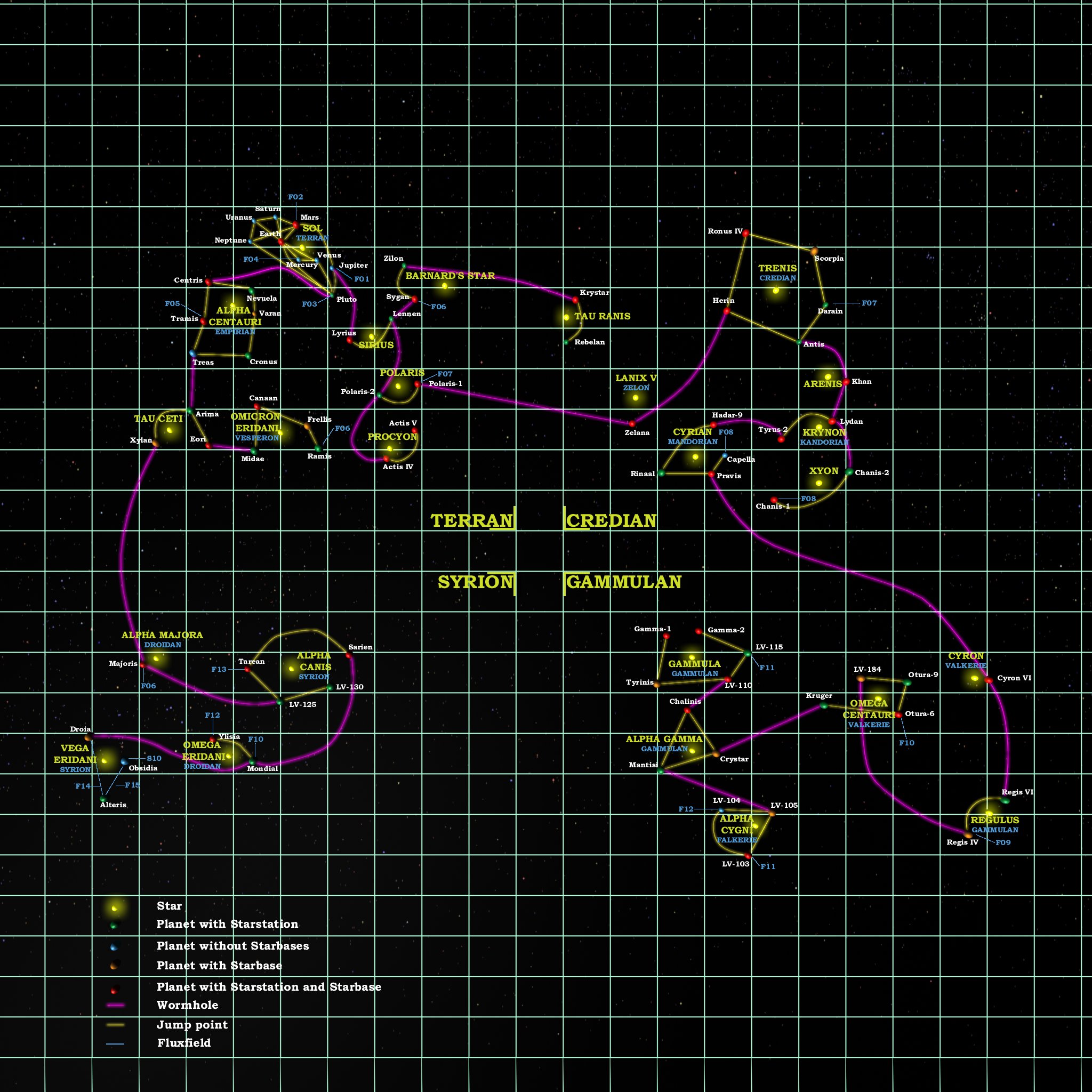
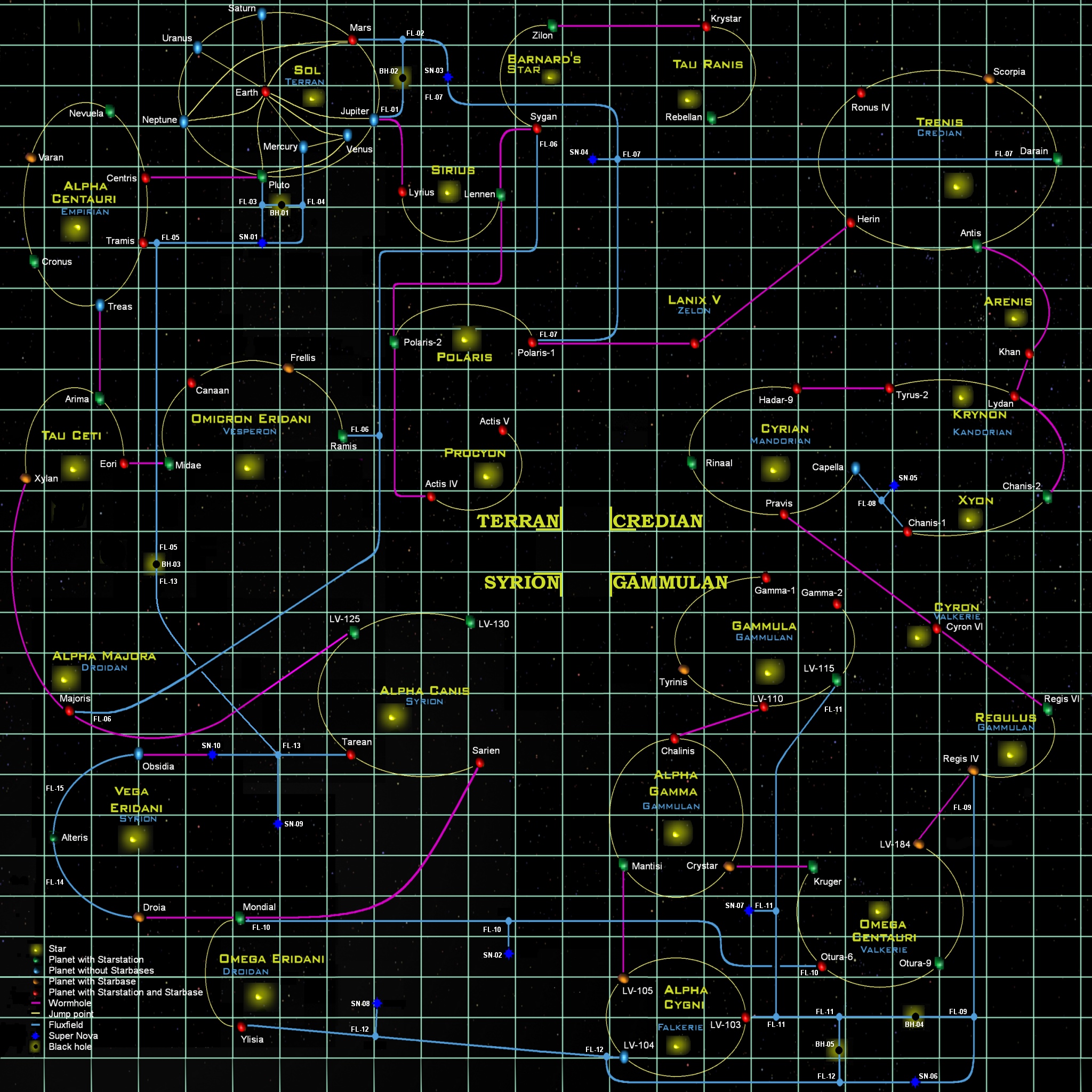
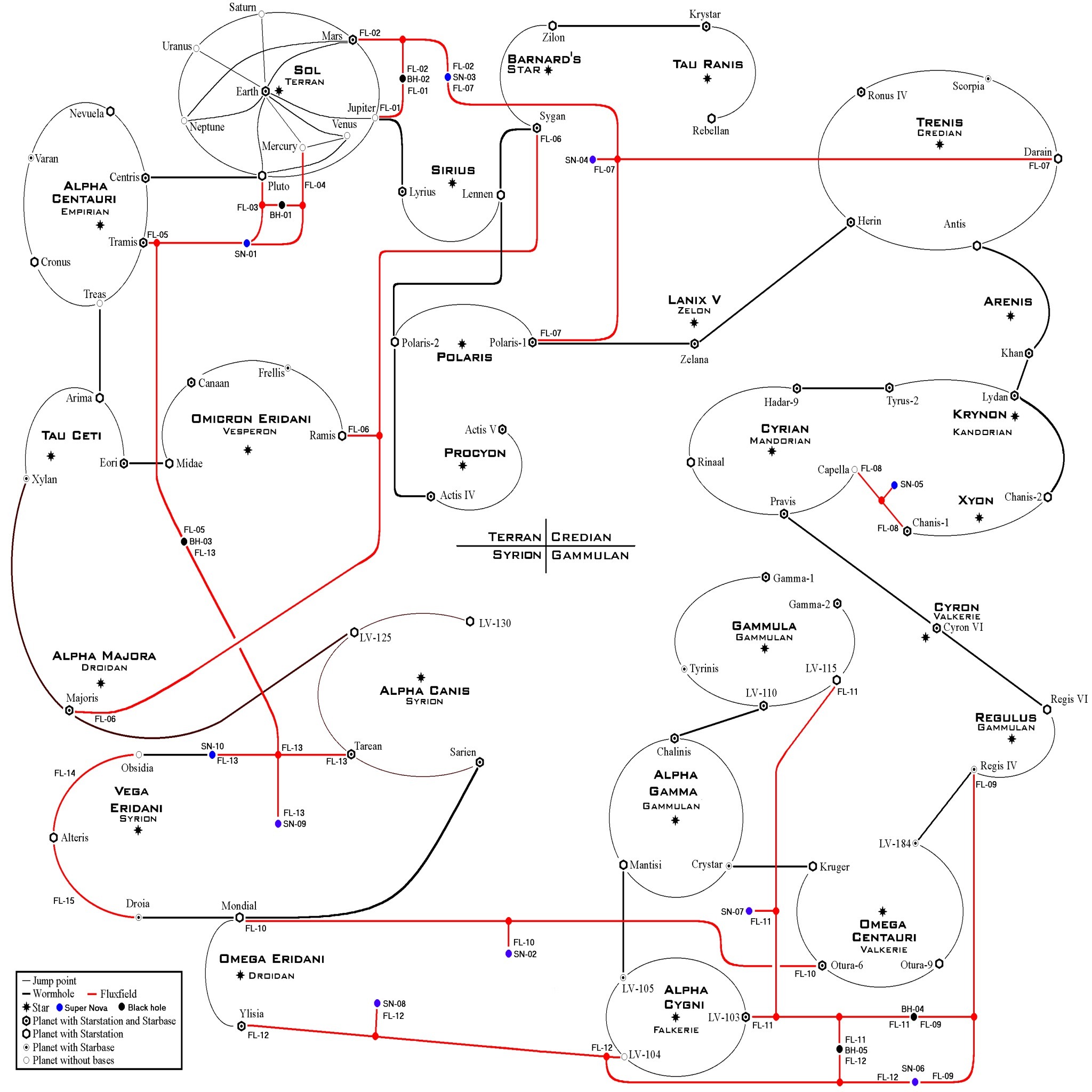
MAPS
http://www.3000ad.com/downloads/world/GAME_GALAXY_MAP.JPG
http://www.3000ad.com/downloads/world/GAME_GALAXY_MAP_LINKS.JPG
http://www.3000ad.com/downloads/world/GAME_GALAXY_MAP_STD.JPG
Commandline Parameters
These are not documented because they are NOT supported for public use. But feel free to use them at your own risk:
These can be added to the Windows shortcut or in the Steam client game properties window.
STEAM VERSION
/i : invincibility cheat
/n : disable the startup company logo animation
/w : run in a window. ALT+TAB will usually work as long as window is not covered by another window. With a large monitor, you could run the game in a 1280x720 window and a PDF viewer (for the docs) in another window (which should NOT cover the game window)
/x : run the software audio mixer instead of hardware. can help with some laptop audio systems and similar ones with buggy 3D audio drivers
STANDARD VERSION
/use_godmode : invincibility cheat
/no_intro : disable the startup company logo animation
/w : run in a window. ALT+TAB will usually work as long as window is not covered by another window. With a large monitor, you could run the game in a 1280x720 window and a PDF viewer (for the docs) in another window (which should NOT cover the game window)
/use_sw_audio : run the software audio mixer instead of hardware. can help with some laptop audio systems and similar ones with buggy 3D audio drivers
Game Config Reset
The game's GAME_CONFIG.INI file is used to store many game options such as resolution, controllers etc. If this file is missing, the game will create a new one with default values.
If you feel that you have config related issues (e.g. unexplained crashes, glitches after changing game options), then you can try deleting this file so a new one can be created by the game.
- Quit to Windows
- Locate (see valid locations below) and delete the GAME_CONFIG.INI file
- Restart the game
Depending on your game version and installation (x86, x64) the game's config file can be located in one of the following locations.
e.g.
Standard Version:
C:\Program Files (x86)\3000AD\Galactic Command - Echo Squad SE\
C:\Program Files (x86)\3000AD\Angle Of Attack\
C:\Program Files (x86)\3000AD\All Aspect Warfare\
Steam Version:
C:\Program Files (x86)\SteamLibrary\SteamApps\common\Galactic Command Echo Squad SE\
C:\Program Files (x86)\SteamLibrary\SteamApps\common\Angle Of Attack\
C:\Program Files (x86)\SteamLibrary\SteamApps\common\All Aspect Warfare\
General Issues
CONTROLLER ISSUES
Q. HOW CAN I REMAP THE GAME CONTROLS?
A. The only controls which you can map are those available in the game config screen.
Q. MY MOUSE CURSOR SOMETIMES DOES NOT APPEAR
A. If you are using the MS Plus!, Mouseware, Intellimouse or similar, change your settings to use the
default Microsoft mouse cursor scheme. For example, in the Mouse Properties tab for Intellimouse,
you would set the scheme to NONE.
Q. I CAN'T SEEM TO ENTER MY NAME IN THE START NEW GAME SCREEN
A. If you have FSAA turned up to full in the game's config screen, try lowering it a notch.
Q. MY JOYSTICK IS DRIFTING
A. Calibrate it via Control Panel before starting the game. Then, once in game, if it still drifts,
put the stick down so that the handle is centered, slam the throttle (if you have one) all the way
back. Then press ALT+CTRL+J to recenter it.
Q. MY JOYSTICK THROTTLE DOES NOT SEEM TO WORK CORRECTLY
A. Make sure you have first calibrated the joystick as indicated above. Also, please read section 6.0
of the game manual to see how the joystick throttle works.
Q. WHY DOES THE CTRL+J OPTION TO SWITCH MY YAW/ROLL STICK FUNCTION, NOT WORK?
A. That option is only for joysticks that do NOT have a rudder or twist axis. If your joystick has a
twist axis, it can be used to control the craft's yaw. As such, your stick already has both axis
supported independently.
Q. MY SAITEK X-36 JOYSTICK IS CAUSING MY WEAPONS TO CYCLE REPEATEDLY
A. By default the M1, M2, M3 keys are mapped to buttons 9,10,11 by the manufacturer. So, since M1
maps to button 9 used by the game, it is the same as repeatedly pressing button 9. To
counter this, move the switch to M10/M11.
Also, if you have an X-45 HOTAS joystick, try using mode 2 if mode 1 causes screen flickering.
Q. I CAN'T GET MY GAMEPAD CONTROLLER TO WORK
A. The game only supports the XBOX360 Controller For Windows as well as analog gamepads which are
DirectX compliant. Which means that not all gamepads are supported. If it doesn't work, then it's
not supported.
MULTIPLAYER ISSUES
Q. WHAT ARE THE BEST SETTINGS FOR CONNECTING TO A SERVER?
A. Please refer to the game manual.
Q. I DON'T SEE ANY SERVERS IN THE GAME SERVER BROWSER SCREEN
A. The server uses UDP/TCP ports 2302-2304. If your computer is behind
a firewall or NAT, then you have to configure your firewall (or router) settings
and forward those ports to the computer running the server.
Also, there may not be any servers online. Try again later.
Q. I SAW A SERVER BUT WHEN I TRIED TO JOIN I WAS TOLD THAT IT WAS FULL
A. Depending on the time you chose to join the server from the time you saw
that it had an empty client slot, someone else may have joined before you.
Refresh the server browser and try again.
Multiplayer Issues
NO SERVERS LISTED IN BROWSER
The master servers went offline in 2011. So multiplayer was disabled in the game's main menu and can no longer run. There are currently no plans to update it any further.
In order to play multiplayer, all clients have to revert to the previous version listed below. Then use the commandline option to connect to a player that's hosting a game. You can also use the console server to run your own server. Because the server is a small app, you can run it on the same machine as the client. See the multiplayer docs for more info.
GALCOM ECHO SQUAD SE
ALL ASPECT WARFARE
ANGLE OF ATTACK