

Game Config Reset
The game's LOD.config file is used to store many game options such as resolution, controllers etc. If this file is missing, the game will create a new one with default values.
If you feel that you have config related issues (e.g. unexplained crashes, glitches after changing game options), then you can try deleting this file so a new one can be created by the game.
- Quit to Windows
- Locate (see valid locations below) and delete the LOD.config file
- Restart the game
Depending on your game version and installation (x86, x64) the game's config file can be located in one of the following locations.
e.g
C:\Program Files (x86)\Steam\SteamApps\common\Line of Defense\
C:\Program Files\Steam\SteamApps\common\Line of Defense\
Display Resolution Issues
The game defaults to 1280x720 (720p) which is a 16:9 aspect ratio display resolution. This may cause issues with some 4:3 aspect ratio monitor and GPU devices. In this case, you have to ensure that your GPU tools (e.g. AMD Catalyst Control Center) is set to maintain the aspect ratio for the 4:3 resolution (e.g. 1280x1024) selected.
If you have screen resolution issues; for example you are unable to change the resolution, the game crashes when you change resolutions, your resolution remains locked regardless of what settings you use etc, then you can try some steps to fix this.
- Please check to make sure that your video card drivers are up to date. If not, update and then reboot before restarting the game
- Locate the LOD.config file and delete it. This KB50 article shows you how
- Start the game so that a new LOD.config file is created
- Locate the newly created (from step #3) LOD.config file, right-click on it and click "Open". When prompted, choose Notepad as the program to open it with
- At the top of the file, locate the <Fullscreen> or <FullScreenWindowed> lines (see example below)
- Change the 0 on either <Fullscreen> or <FullScreenWindowed> lines to a 1 to enable fullscreen or windowed fullscreen
- Change your resolution numbers in <ScreenWidth> and <ScreenHeight> to fit the resolution you want to run the game at.
- Save the file and try reloading the game.
BEFORE:
<FullScreen>0</FullScreen>
<FullScreenWindowed>0</FullScreenWindowed>
<ScreenWidth>1440</ScreenWidth>
<ScreenHeight>900</ScreenHeight>
AFTER:
<FullScreen>1</FullScreen>
<FullScreenWindowed>0</FullScreenWindowed>
<ScreenWidth>1920</ScreenWidth>
<ScreenHeight>1080</ScreenHeight>
Locating the game docs
The game docs are available in PDF and JPG format and setup for printing in landscape mode. You can locate them at the following places:
- On the game's Steam store page, the links are to the right of the page
- After installing the game, they are located in Start Menu/3000AD/Line Of Defense Docsfolder shortcut
- After starting the game, they are accessible from the game's launcher
- When in the game, they are accessible using F4 (game commands) and F5 (game manual), then using the arrow keys to scroll
- They are on the game's website FAQ where you can easily download them for printing
If you have the Steam version, the installer should do a silent install of these, though for some reason it doesn't always do it.
If this fails for whatever reason (e.g. OS permissions, anti-virus settings etc), please follow this procedure to install them.
Look in the Steam's game install folder e.g.
C:\Program Files (x86)\SteamLibrary\SteamApps\common\LineOfDefense
C:\Program Files\SteamLibrary\SteamApps\common\LineOfDefense
There you will see LOD_steam_shortcuts.exe
Please run that file to do a silent install of the docs and other resources (e.g. cheat codes!)
You can then locate this folder in Start/Programs/3000AD/
How to use Steam voice chat
The game has full support for Steam's voice chat. For instructions on how to set up and use it, please read this article.
How to find your map location
To find your exact location in game, you can use the /loc, /where and /whereami commands to get your coordinates. This can be helpful to share with other players or when submitting tickets for found bugs and suggestions.
The steps to use this feature are shown below. Each of these commands does the same thing as the others, so pick the one you're most comfortable with.
- While in game, press the L key to open your chat window.
- Type one of the following commands into chat: /loc, /where or /whereami. Press Enter.
- Your location coordinates will be displayed in the chat window: X: xxx; Y: xxx; Z: xxx. They are not broadcast to anyone; they are only displayed for you.
Your coordinates are also copied to your clipboard as /goto X,Y,Z. This makes it easy to paste them into a support ticket!
Crash during Steam game login
As has been reported in the forums, we found out that the crashes when trying to login to the game via Steam login is related to corrupted Steam downloads.
If this happens to you, please do the following:
- In the game's Steam library entry, right-click on the game
- Select Delete local content to uninstall the game
- Download the game again
- Now try starting the game, select a DirectX option from the launcher
- Login via Steam when prompted
LOD Windows 10 Compatibility
The release of Windows 10 causes some problems with various games. LOD happens to be one of those games.
In Windows 10, the DirectX binaries installed with the game, are completely removed in some cases. We don’t specifically know how or why it is happening, but it could depend on the upgrade path (e.g. WIN7 to WIN10, WIN8.1 to WIN 10), clean WIN10 install etc.
Regardless, when this happens, it breaks most games, including LOD.
If this happens, you need to re-install DirectX runtime, Visual Studio 2010, and Visual Studio 2013 runtime components required for the game.
If running the above doesn’t fix the problem, then try these methods:
- Navigate to your Steam library folder where the game is installed:
C:\Program Files\Steam\SteamApps\common\Line of Defense\_CommonRedist\
or
C:\Program Files (x86)\Steam\SteamApps\common\Line of Defense\_CommonRedist\
or if you relocated your Steam library to different folder instead of the default, something like this, where X is the drive letter.
X:\SteamLibrary\SteamApps\common\Line of Defense\_CommonRedist\
- In the \DirectX\Jun2010\ folder, run DXSETUP.exe
- In the \vcredist\2010 folder, run vcredist_x64.exe for 64-Bit Windows or vcredist_x86.exe for 32-Bit Windows
- In the \vcredist\2013 folder, run vcredist_x64.exe for 64-Bit Windows or vcredist_x86.exe for 32-Bit Windows
When key bindings no longer work
If you find some keys don’t work after you do a version update, just reset your key bindings from within the game options screen.
Crash Reporting
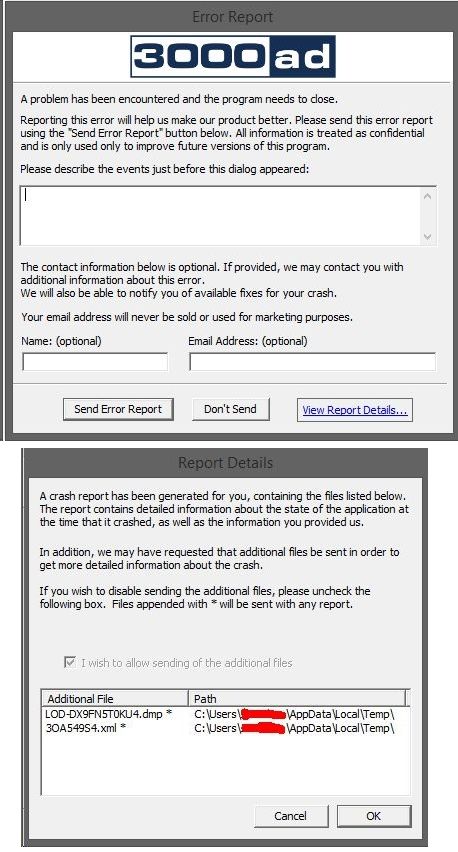
In order to efficiently track reported crashes, in Build 00.09.05.04 | 15-08-04 we implemented new bug tracking and reporting software.
However, in order for this to be effective, you have to use it. Just enter a brief description of what you were doing and send it to us. No personal information is transmitted and your name and email address are entirely optional.
Below is a sample of both screens. The top one is the crash dialog, and the second one is the crash report details.
Line Of Defense - Important Support Bulletin
TECH SUPPORT GUIDELINES
Before continuing, please review the game's tech support guidelines
All Line Of Defense KB articles are listed here.
WINDOWS 10
With Windows 10 out, the DirectX binaries installed with the game, are completely removed in some cases. We don’t specifically know how or why it is happening, but it could depend on the upgrade path (e.g. WIN7 to WIN10, WIN8.1 to WIN 10), clean WIN10 install etc.
Regardless, when this happens, it breaks most games, including LOD. If this happens, please read out KB68 support article for possible fixes.
PERFORMANCE ISSUES
If you run the game through CanYouRunIt and it tells you that your machine (e.g. laptop which uses mobile components) does not meet the minimum requirements for the game, there is no point in your running the game.
We are not going to reduce the system requirements and we can’t do anything to make it run on machines which do not meeting the minimum requirements.
As mentioned in the latest State Of Play dev blog, this is a massive game and it requires a beefy system.
The game has some performance issues because it has not yet been optimized fully. The game is in Early Access. It is to be expected. And this is mentioned in the game’s known issues section of the changelog.
We are constantly doing performance tweaks to make the game run even better on our target minimum systems; but those benefits are gradual.
We’re not going to focus on intensive optimizations at this point as we have that scheduled for the final stage of testing once everything is in place and we can focus all our attention on optimizations and various tweaks.
VISUAL ISSUES
Most visual issues, are related to drivers. So your rig runs The Witcher 3? Oh, that’s nice. But it doesn’t mean anything.
- If you are using old or incompatible drivers, regardless of the locale (language), the game will have visual issues.
- The ONLY way for us to test video driver issues, and find the problem, is to know 1) the make and model of the video card 2) the driver version being used.
- Saying “Oh my machine runs The Witcher 3” is not helpful, because it is meaningless. LOTS of games run on one set of drivers, but other games have problems on the same set of drivers. For example, nVidia released 352.86 drrivers specifically for Witcher 3. And here is an entire page of game specific drivers.
- Running the game on a foreign OS, does present locale (e.g. German, French, Italian etc) related issues. There are games which refuse to run or just crash if the OS locale is changed.
LOD is developed for the English language and we do not support any other language or OS locale. We know that it DOES work, regardless of locale, but issues are to be expected. Once we are aware of, and can reproduce those issues, we can fix them.
CONNECTION ISSUES
If you are logging into our US based servers (located in Las Vegas) from international territories, you will run into some multiplayer performance issues.
This is why most games have regional servers. We do not yet. Once the game is approaching final release, we plan on having East and West coast US servers, as well as servers in the EU.
The latest version of the game has a /ping command which you can use to test your connection to the server. More info is on the tech support page.
For optimal performance, your ping time to the server should be 200ms or less.
You can find server status and status codes on the Server Status Page.